

Introducing TulipFarm in Slack
 By Dhruv Jain

On this page
TulipFarm in Slack is a new way for your whole team to work with TulipFarm agents, right where you already talk.
Connect Slack once, and TulipFarm joins your workspace as an app. Give each channel its own agent, such as HRAssistant in #help-hr or Support Agent in #support. Then anyone in the channel can ask it for help. It answers in a thread, with real buttons, choices and forms instead of a wall of text, and it asks before it takes an action that needs approval.
We started with Slack because it is where much of a team’s day-to-day work is already discussed. Until now, getting an agent’s help meant switching to TulipFarm and pasting in the context from a thread. Now the agent comes to the thread. TulipFarm in Slack is available today in every TulipFarm Cloud workspace.
Watch TulipFarm in Slack on YouTube.
Working with TulipFarm in Slack
If you have used agents in TulipFarm chat, this will feel familiar. Message TulipFarm directly, or mention @TulipFarm in any thread, and ask in plain words. The agent shows its steps as it works, using the tools and knowledge it has access to. When it is done, it replies in the thread.
Working in Slack adds a few things that a single chat window can’t do.
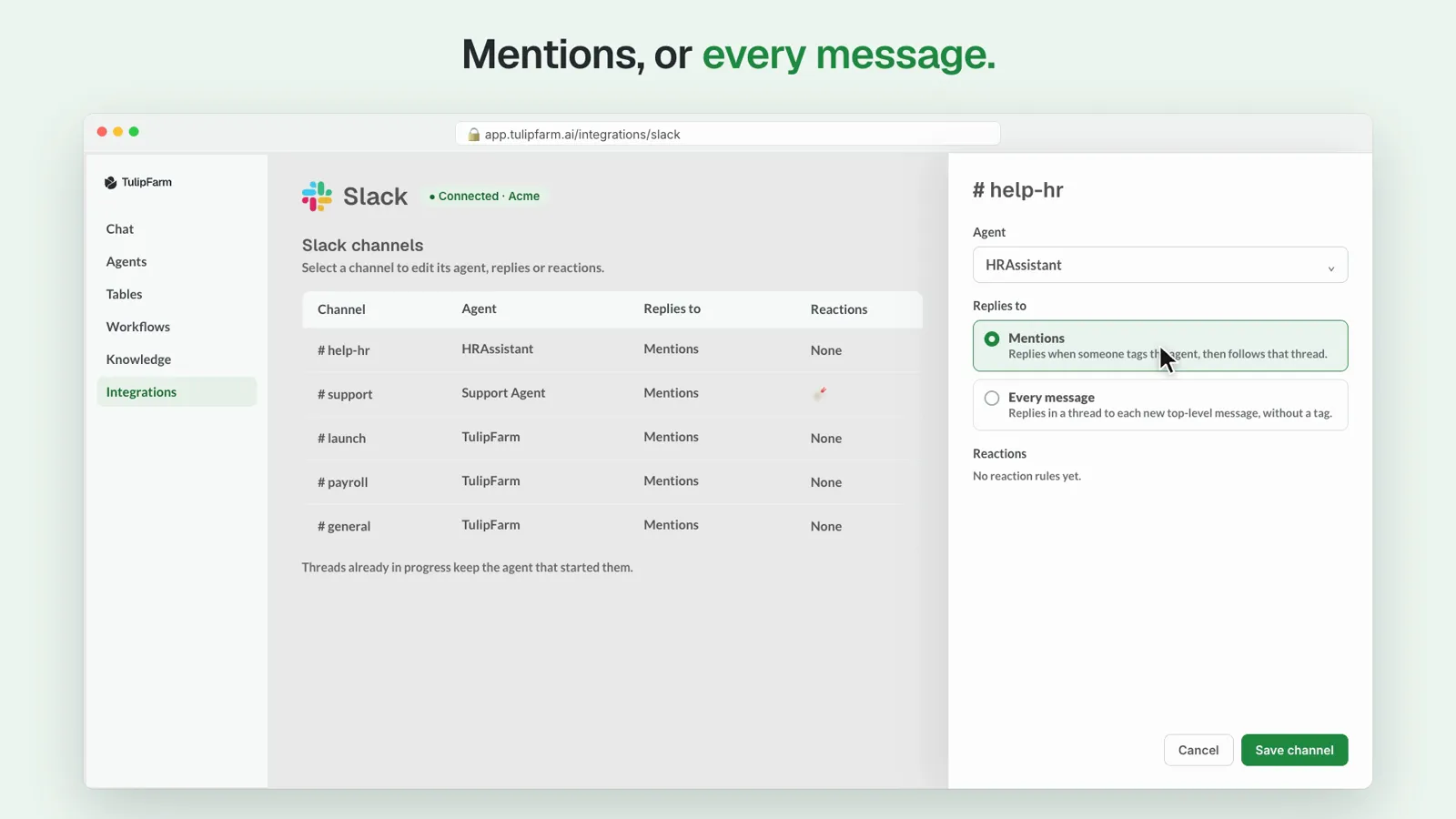
Each channel gets its own agent. An agent manager attaches an agent to a channel and chooses how it listens: it can reply only when someone tags it, or answer every new message in the channel. HRAssistant can own #help-hr while Support Agent owns #support, each with its own instructions, tools and skills.
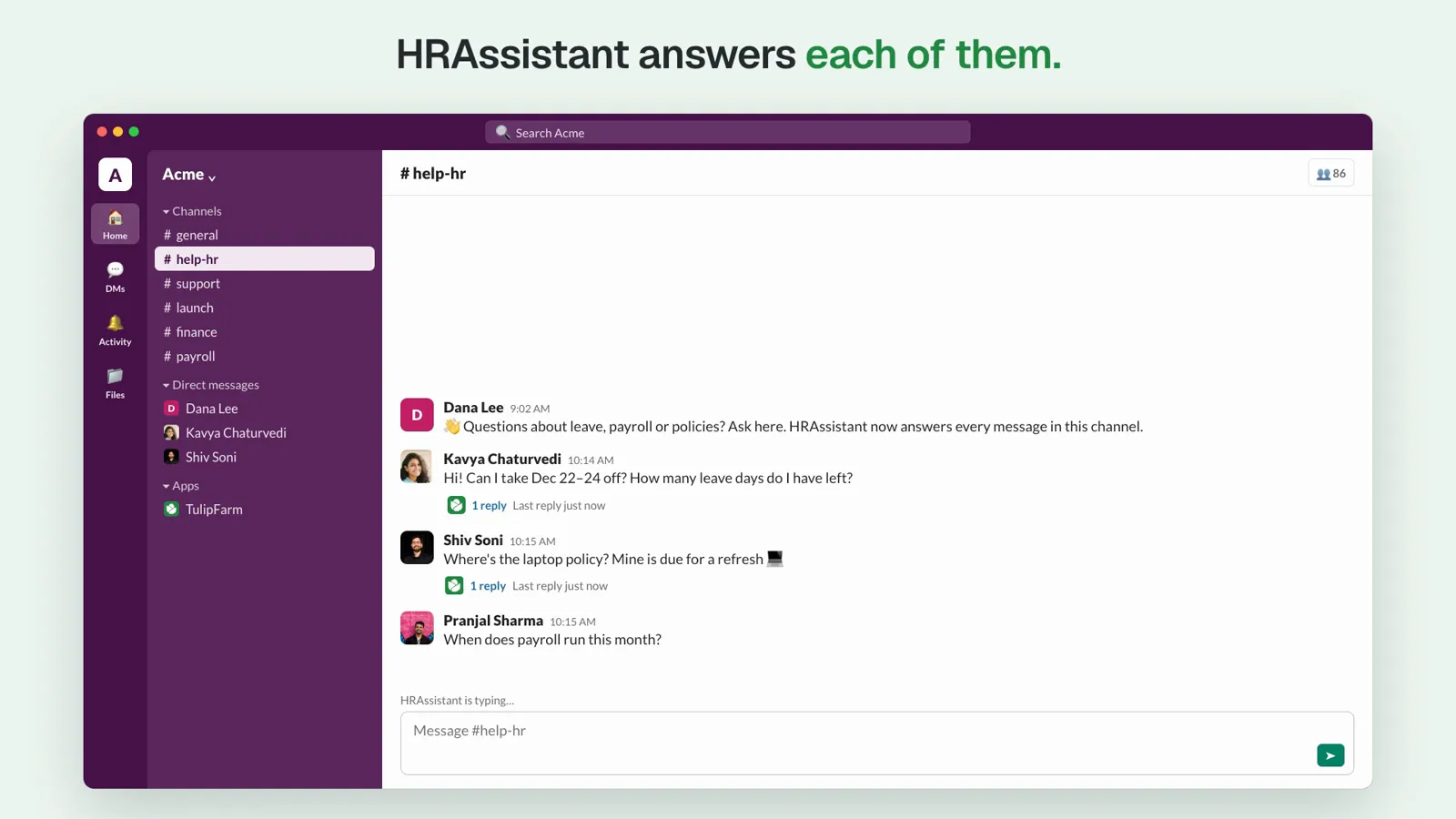
It works with the whole channel. Several people can ask the same agent at once. In #help-hr, Kavya asks to book time off, Shiv asks for the laptop policy and Pranjal asks when payroll runs. Each of them gets an answer in their own thread, and each run belongs to the person who asked.
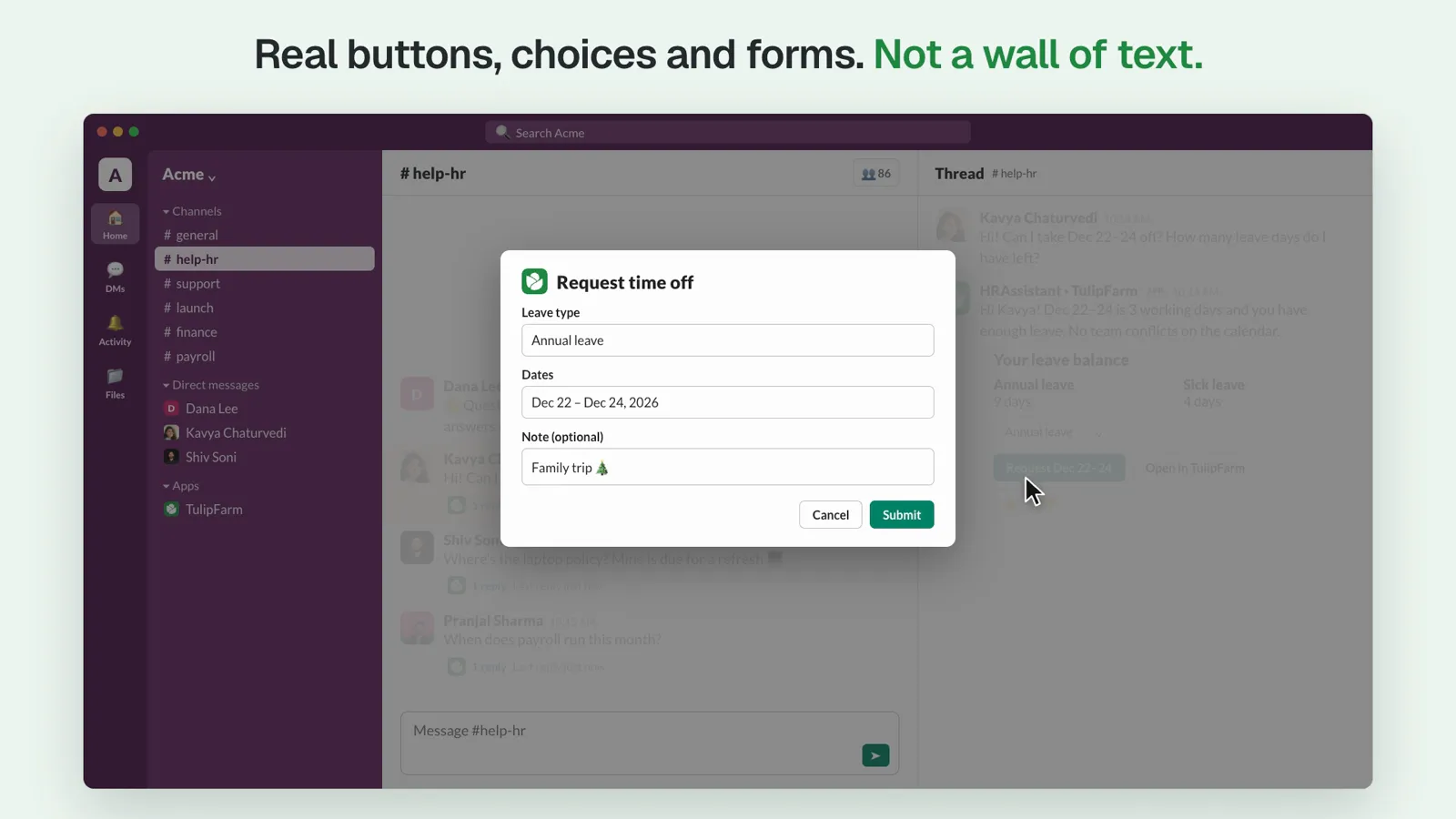
It replies with interface, not just text. Replies can include buttons, menus and forms that open in Slack. Ask for time off and the agent can show your leave balance with a button that opens a request form, with the dates already filled in. Only the person who asked can use those controls, so nobody else in the channel can submit a request for you.
It links its sources. Tag TulipFarm for bigger jobs, like “summarize this week’s threads and list the open questions”. It searches your knowledge sources too, and links the documents it used so you can check its answer.
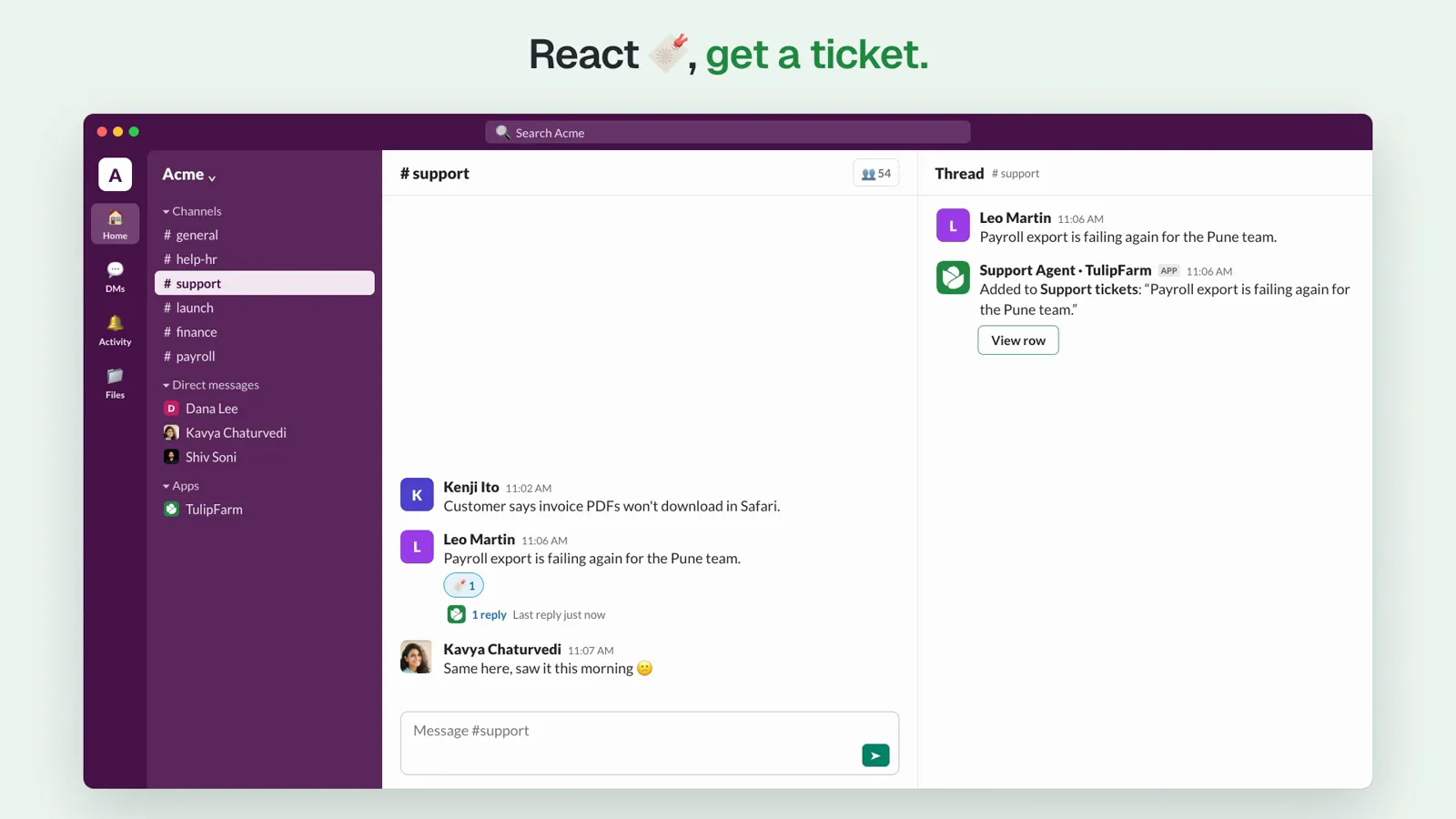
Reactions do real work. Each channel can have its own reaction rules: react to a message with an emoji, and the channel’s agent runs that rule on it. In #support, a 🔖 reaction can add the message to your Support tickets table and reply in the thread with a link to the new row.
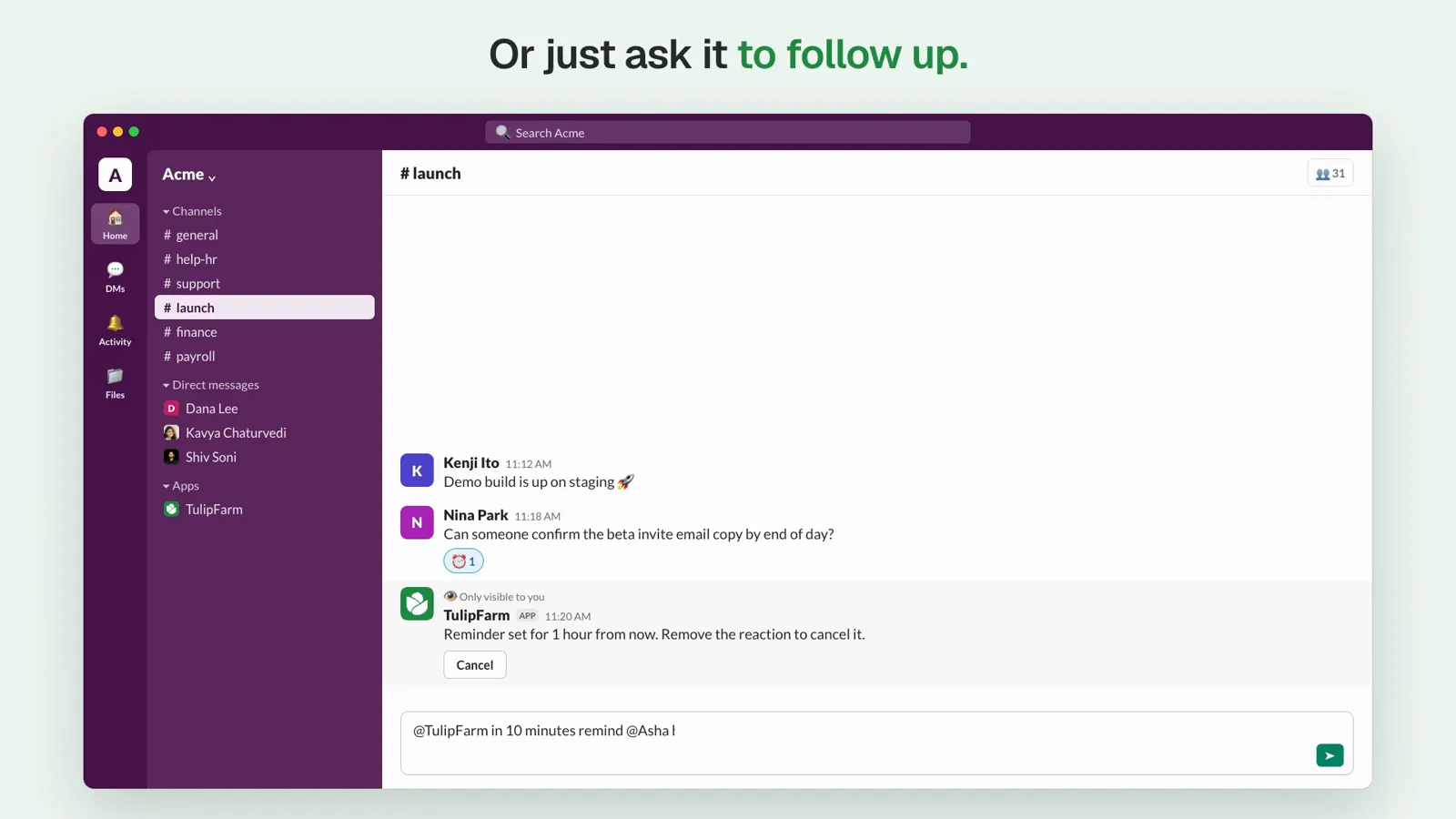
It follows up. React to a message with ⏰ and TulipFarm reminds you in that message’s thread an hour later. Remove the reaction to cancel. For anything else, just ask: “in 10 minutes, remind @Asha here”. When the follow-up is due, the agent answers again in the same thread, and a Cancel follow-up button lets you stop it first.
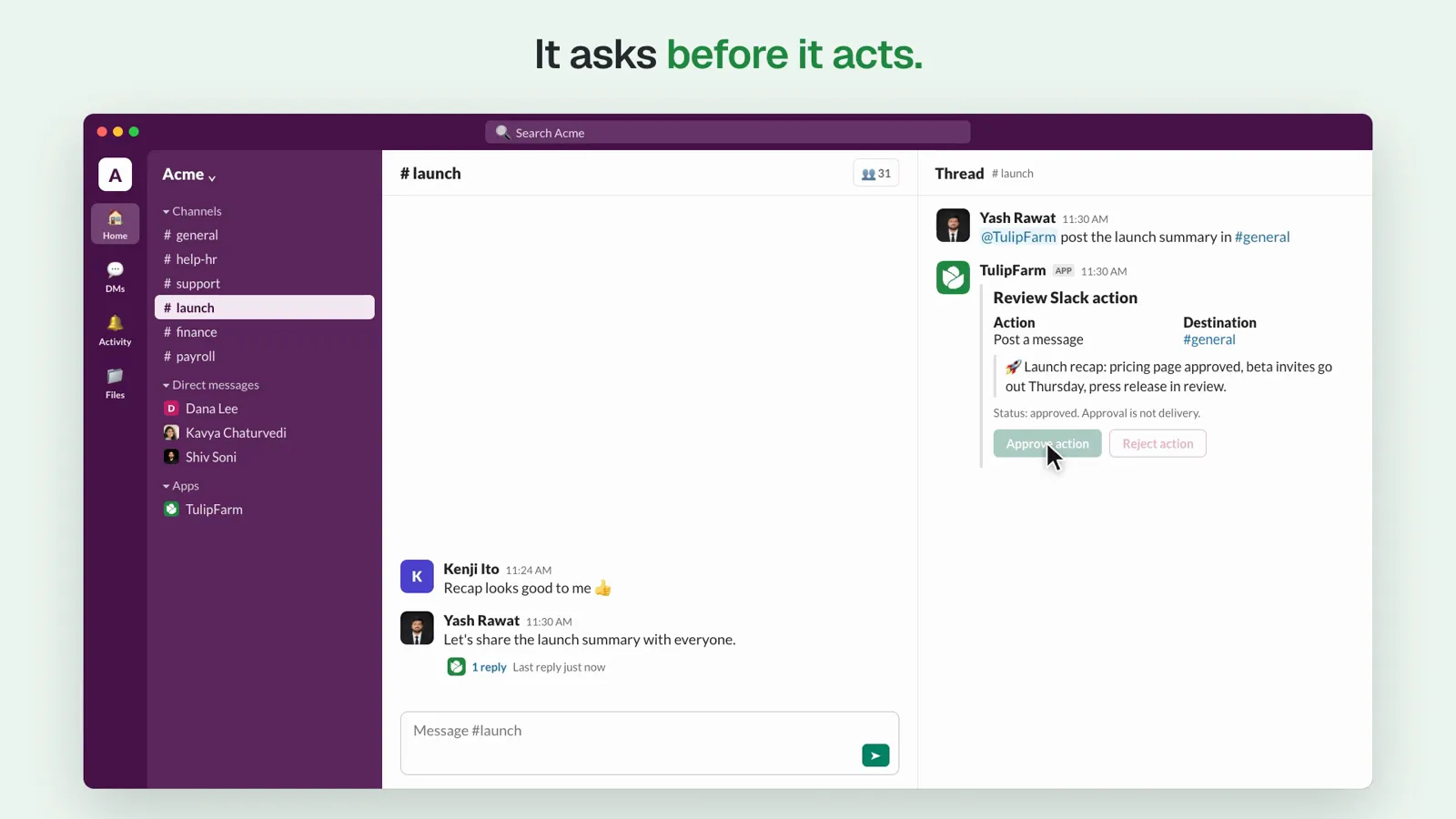
It asks before it acts. When an agent wants to do something in Slack that needs approval, such as posting a launch summary to #general, it posts a Review Slack action card first. The card shows the destination and the exact message. Approve or reject it from the card; nothing is posted until someone approves it.
Getting started
We built TulipFarm in Slack for teams, so access stays under your control.
- Shared with the people you choose. Connection managers decide which people and teams can use the Slack connection, and who can manage it.
- Only the channels you add. TulipFarm reads messages only in channels it has been invited to. An agent manager can also limit which channels each agent uses.
- Only linked members. Each person links their own Slack account to TulipFarm. We don’t match accounts by email address, and an agent answers only people who are current members of your TulipFarm workspace.
To get started, sign up for TulipFarm Cloud and follow these four steps:
- Open Connections, select Slack, then Connect, and follow the Slack steps.
- Send
/invite @TulipFarmin a channel, then select Refresh under Channels in TulipFarm. - On an agent’s Slack tab, attach the agent to the channel and choose whether it replies to mentions or to every message.
- Ask your team to message TulipFarm. The first time, each person gets a link to connect their Slack identity, and their request stays saved while they link.
Your first signup includes $50 in free credits. Read the Slack setup guide for the details, or see everything TulipFarm can do in Slack on the TulipFarm for Slack page.
Slack is the first chat app we support this way. We’d love to hear where your team wants to ask TulipFarm next: get in touch.